lang
The easiest way to make a DVD-Video or to convert for editing (HD & DV) without losing quality
image


Screenshots

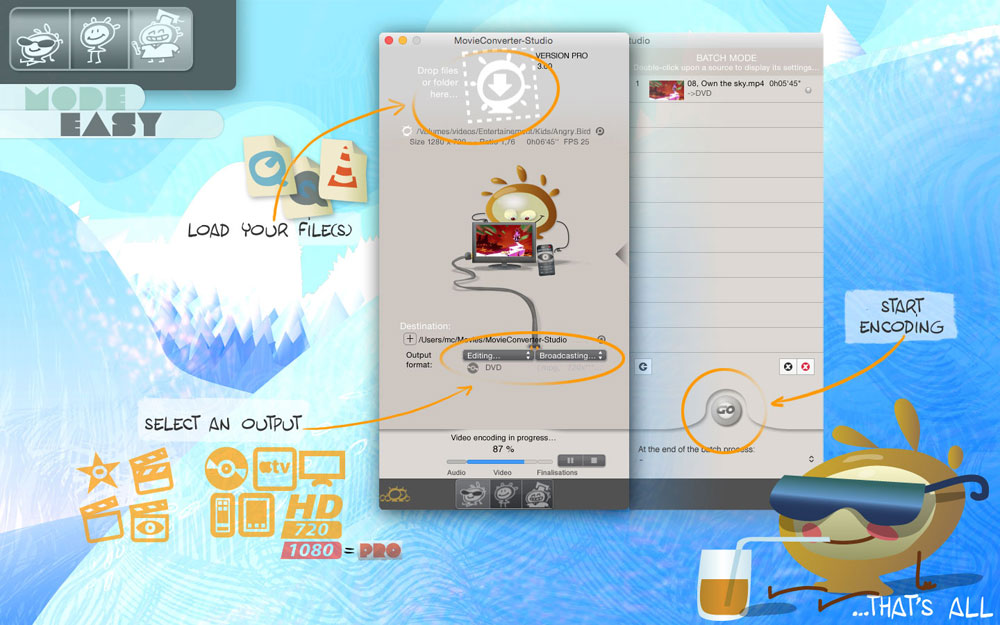
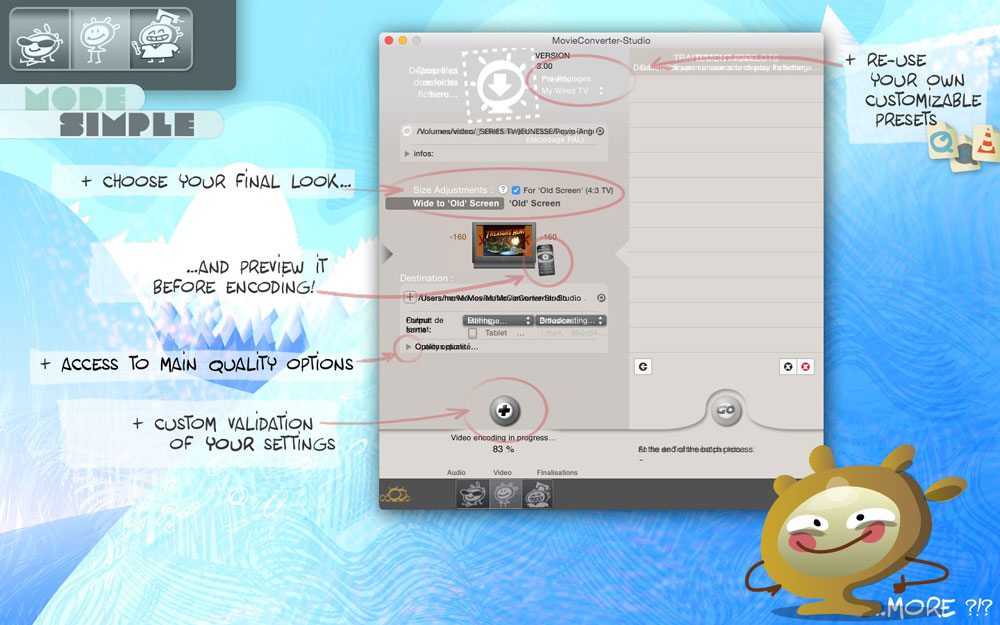
  • encoding
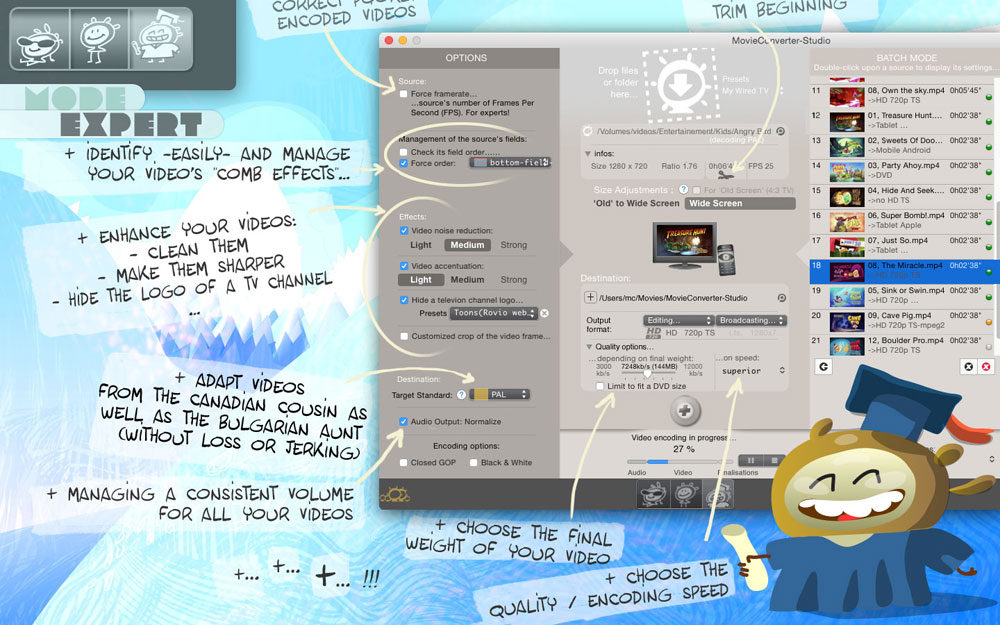
  • encoding: batch mode
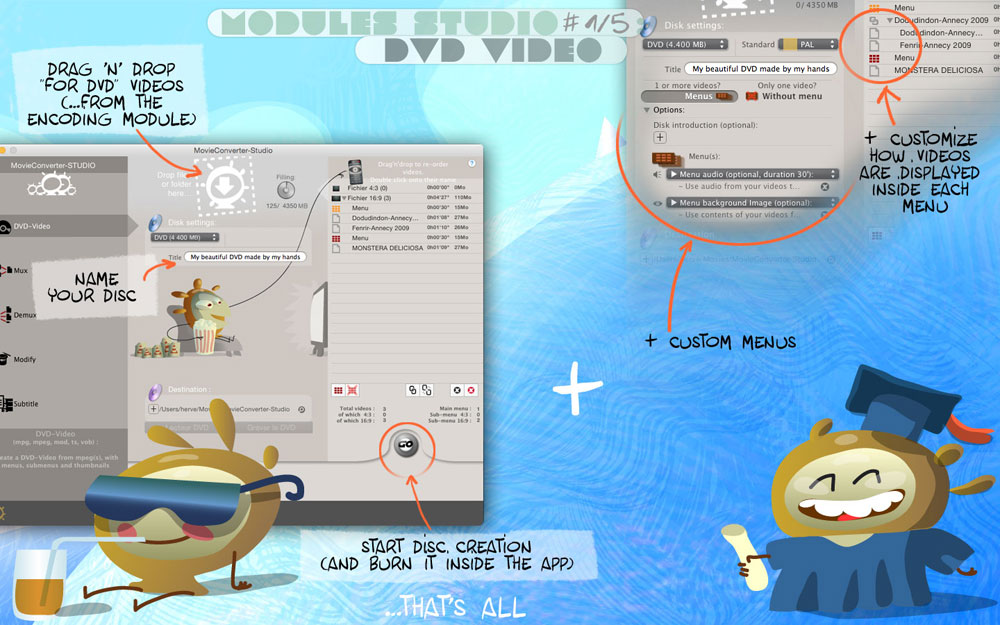
  • studio: DVD-Video module
  • studio: module HD Converter to QuickTime format
  • studio: module HD Converter to QuickTime format
  • studio: Modify module
  • studio: Demux module
  • studio: Mux module

features:
studio modules

  • HD Converter
    • Convert -for free- your AVCHD, TOD and Sanyo videos to QuickTime compatible files, to edit thm in iMovie (HD and '08/'09) or FinalCut.
    • Preview these files -usually illegible- before conversion.
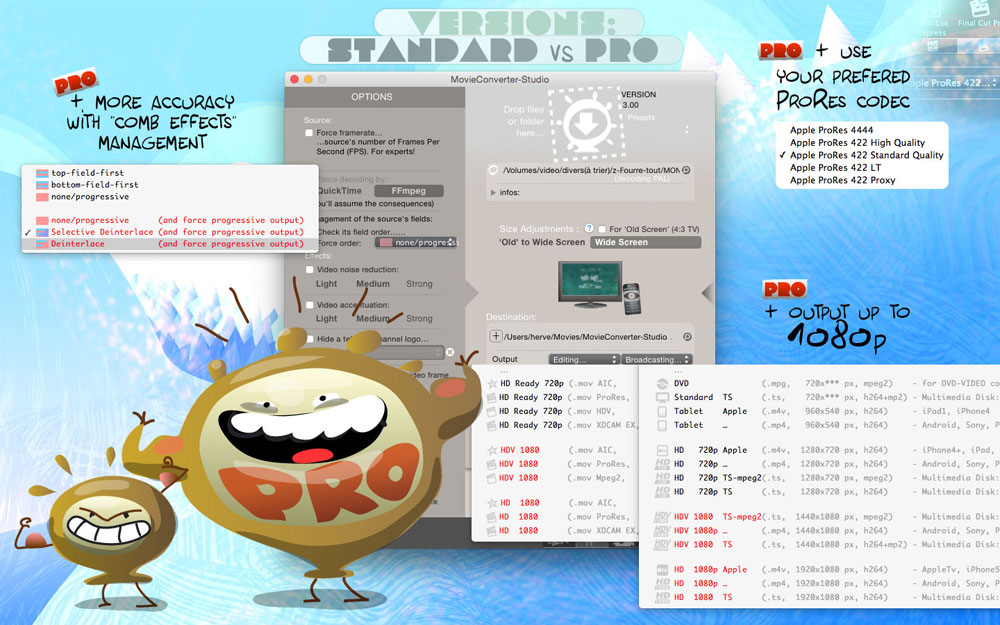
    • More controls than with iMovie or FinalCut: convert to a progressive or interlaced output, and to your chose size (MovieConverter Studio will conform them for you ;)).
    • New: correctly handles AVCHD videos in 60 and 50fps, AVCHD wrapped in .MPG (ToshibaA40FE), and progressive AVCHD (LumixFZ7).
    • Registered users, some comfort options:
      - Batch mode
      - Convert AVCHD videos between 3 and 4 times faster :).
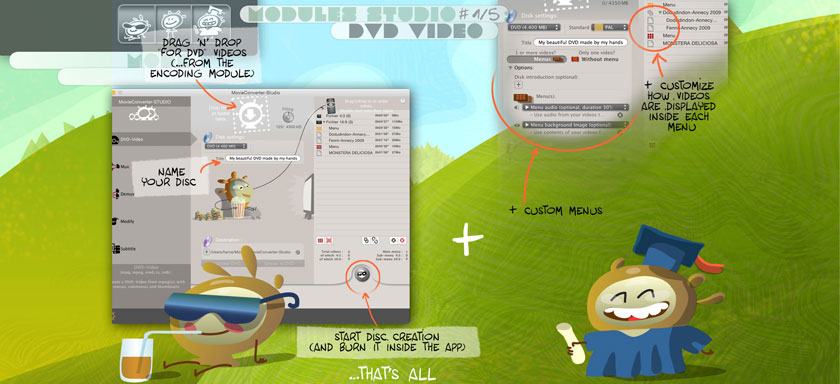
  • DVD-Video
    • Automatically create a DVD-Video with menus (and submenus), thumbnails and captions (3 minutes maximum to prepare all your DVD settings)
    • With a file from encoding SD module, or directly reuse your EyeTV files, videos from your JVC Everio camcorder,…
    • Import your files: MCS offers to conform them if they were not already compatible.
    • Re-order their broadcast order.
    • Sound your menus, add a background picture.
    • Burn your DVD-Video -directly in MovieConverter Studio- to the most compatible format with DVD-readers.
  • Demux your MPEG
    • extract audio(s)…
    • … video(s)
    • … and subtitles too!
  • Mux
    • combine audio(s), video(s) and subtitles into a single MPEG.
    • Add subtitles (.srt as those from the freeware Miyu, .ssa, …). Choose appearance. All languages are compatible.
    • Subtitles will be automatically displayed on your TV screen via the DVD-Video module (but you can disable them with your remote control if you do not want them ;)).
  • Modify your video aspect without re-encoding
    • Your JVC Everio camcorder is not compatible with DVD-Video aspect? …so change it!
    • Conform your MPEG2 NTSC Film.
1

visitors

133765
Today: 145

currently:

where:

Studio


chapitre

You get the SAME BEHAVIOR with all modules:
I am lazy, I do not want to systematically have to check the result, so…
All the modules will deliver their opinion at the end of the process:

:-) the process went well, data before and after processing is coherent (if you checked the button "Delete the source file if successful", the file will be deleted: no need to keep the old file).

:-( the processing did not end well, data before and after processing is not coherent, check the result (if you have or not checked button "Delete the source file if successful", the file will not be deleted).

(nothing) maybe yes, maybe no. Data are rather coherent but not concordant enough to deliver an opinion, check the result (if you have or not checked button "Delete the source file if successful", the file will not be deleted).


  • Create a DVD-Video - iAuthoring

New (version 1.4):

Select your DVD standard.

(The default standard is the one you have chosen in preferences.
You can not mix NTSC and PAL movies in a single DVD, this is not allowed by DVD specifications).

New (version 1.5):

Select a mpeg file (or a folder containing mpegs).

Select a mpeg file, multiple files (or a folder containing mpegs).

Remove one, add another…
Re-order them directly in the new DVD module window.

chapitre

You can put aliases in a folder too, MovieConverter will collect your mpeg as if they really were in it.

Select a picture (or a mpeg movie), to set it as the DVD introduction.

(optional feature)

Menus:

  • Give a title to your DVD (do not forget to validate). This title will appear on your menus.
  • If no thumbnail is associated with your mpeg in the Finder, MC can generate a thumbnail to the corresponding button on the menu.
    To avoid a screenshot of a "beautiful black video extract," MC will extract thumbnails during the first 60 seconds of your mpeg (a customizable number), trying to avoid the uninteresting thumbnails ;).
  • Chapterize automatically every x minutes (if your video lasts 4 minutes: no chapters will be added, if your video lasts 40 minutes: it will have 10 chapters).
  • Personalize each thumbnail caption in the new "Tracks window" (right side).
  • Re-order tracks by simple drag'n'drop in the new "Tracks window" (right side).
  • Add audio to your menu (select music on your disk, or use the audio part of tracks to add sound to your DVD menus).
  • Add a background image to your menus (select an image on your disk. Depending on its size, MovieConverter Studio propose -visualy- to you to adapt it to the needs of the DVD, choose between its 3 proposals).
chapitre

Pre-set your thumbnails: just put a .jpg file as the same name than the MPEG beside it (…like the one MovieConverter generates for you during each encoding ;)).
MovieConverter Studio will not generate a new thumbnail, it will only collect the one you left available for it.


Select a destination.


Click on "Go" to create the "DVD-Video folder"
End of the DVD-Video module: It takes 3 minutes maximum to prepare all your DVD settings (…and let the Mac bother to do the remainder ;))


Preview it (button "DVD Player"). Is it OK?
So, burn it -directly from MovieConverter- to the most compatible format with DVD-readers (no more need to make a disk image ;)).
This feature comes from the author of the great burning soft LiquidCD :)

chapitre

For better compatibility with DVD-readers, do not forget to burn it to the SLOWEST speed (avoid "maximum speed ").


Limitations :

  • A DVD with 9 videos maximum will always be "safe", even if you mix audio formats and video sizes (the best compatibility is not promised if you mix more than 9 different videos on a single disc. Eg: standard MPEG + MPEG DVB-T + …).
  • You will only get direct access to the first 9 sub-menus (aka the first 81 videos on your DVD). For the remainder of the sub-menus, you will need to navigate through the "MENU NEXT" buttons, included in each sub-menu (You will lose some ease of use, but I have already authored more than 110 short-movies on a disc with this module ;)).
  • Your DVD menus are already well localized in Japanese, English, French, Portuguese, German, Italian, Chinese, Spanish, Russian, Dutch, Finnish and Norwegian.
    flagsvide flagsvide flagsvide flagsvide flagsvide flagsvide flagsvide flagsvide flagsvide flagsvide flagsvide flagsvide
  • Your DVD menus are approximately localized in Korean, Swedish, Danish, Polish, Portuguese Brazilian, Chinese traditional. If you want to add your language or correct an approximate localization, contact me (you will not spend more than 5 minutes to do it). flagsvide flagsvide flagsvide flagsvide flagsvide flagsvide


  • Modify without re-encoding

Modify/Correct your files without re-encoding: elementary video streams -m2v, mpv- or mpeg.

This module does not handle multiple streams in an mpeg: only the first audio, the first video and the first subtitle.

vide Your source file is in 4:3 but it is displayed as 16:9? Force its display (classic case with Digital Video Broadcasting : TNT, Cable, …).

Example of use: The JVC Everio camcorders can shoot in 16:9, but their 16:9 "flag" is not compatible with DVD standard. They will display as 4:3. Use this module to correct the flag without any re-encoding ;).

vide Your source file -NTSC Film- was not correctly encoded (by another software ;)) to do a DVD with it? Give it to pulldown (more infos here).

chapitre

This module is not too stupid, the only available options are the ones compatible with your source file (why propose to insert a NTSC bit in a PAL video file? ;)).


  • Demux

Extract elementary streams: video, audio and subtitle, from an mpeg.

This module separates multiple streams of a MPEG: audio(s), video(s) et subtitle(s).
Only DVD subtitles are supported (and not "teletext" subtitles, as used by French and others broadcasters).

A subtitle will be automatically detected, if it starts "early" in the mpeg. If in doubt, check the option "Force search of one (or more) subtitle(s)".
MovieConverter Studiowill scan your entire mpeg to try to extract a subtitle.
If MCS find a set of subtitles, it will scan a second time to try to find another
etc
…Until MC find no more subtitles ;).


  • Mux

Join a video, and/or an audio, and/or a subtitle.

An mpeg is a mixture of video, audio (and any other data), cut in small packets and wrapped mixed. It is the reverse of the module 'demux', which separates a file to its components (called 'elementary streams').
If you have elementary streams (eg: MC's preferences are set to 'output DVD for DVDSP', or from an Eyetv.app export in "MPEG Elementary Streams", …), you can join them together with this module.

By default, this module only handles 1 video, 1 audio and 1 subtitle.

Warning: the subtitles are not (or poorly) supported with "PCM" audio format (not compressed audio).
Warning: the BitRate of the DVD standard is limited, mux several videos or audio "PCM" in a single MPEG may fail (the resulting BitRate is too high).

vide Generate a file containing multiple audios:
  • You have an MPEG and you want to add audio: 'Demux' the MPEG first and give again to 'Mux'.
  • You have multiple audio elementary streams: put the video elementary stream and the audio files in the same folder. Rename them in the same way but add a number to their end (eg: "yourfile".m2v, "yourfile"-1.ac3, "yourfile"-2.ac3, "yourfile"-4.ac3, "yourfile".srt). The files sharing a common name will be automatically selected with the video.


vide Add a subtitle:
  • You have an elementary stream or an MPEG: select it as well as the .srt
  • You can add as many subtitles as you want, but only one by one (and give your resulting subtitled MPEG file to 'Mux' to add onother subtitle, etc).
  • MovieConverter also handles subtitles from its 'Demux' (if your MPEG contained a subtitle, this subtitle was extracted too, so give it to 'Mux' to re-integrate it ;)).


vide Use of text subtitling:
'Mux' handles 2 subtitle formats:

  • Image subtitles (eg: from the demux of a subtitled MPEG).
  • Text subtitles (.srt ou .ssa).

Text subtitles: the first selection of a .srt will be slooooooow (MovieConverter will collect all the necessary data to the encoding of a subtitle). The other selections will be immediate.

You must specify:

Origin subtitle: its specifications.

sub_encoding

Its encoding: how characters are coded in the text file (ISO-8859-1 for subtitles from DOS, MS-EE from Windows, MacRoman for subtitles from Miyu, etc).

sub_standard

Its initial standard: if MovieConverter converted your video standard, your subtitle could not be synchronized. Select the orignal video standard (this information is present in the file 'Read-me.txt', generated during your video conversion).


Target subtitle: its display.

sub_font

Font to display subtitle: select the font your subtitle will love (eg: prefer a Japanese font for a srt encoded in Japanese ;)).
If available on your computer, I recommend Trebuchet.ttf (very readable, not ugly and best adapted to both 16:9 and 4:3 screens).

sub_font-taille

Font size: 28pixels is a size commonly used by French broadcasters.

sub_H

Display position of subtitle, in width…: left, centered, right.

sub_V

…and in height: top, middle, bottom.


  • HD Converter (with thumbnail and "live preview")

convert videos from your camcorder HD into QuickTime compatible files (ready for iMovie / FinalCut).
PS: FREE MODULE (free access to all without registration)

Runs on PPC as on Intel.
(and you will avoid to use iMovie'08/09 poor export quality)


AVCHD TOD Sanyo
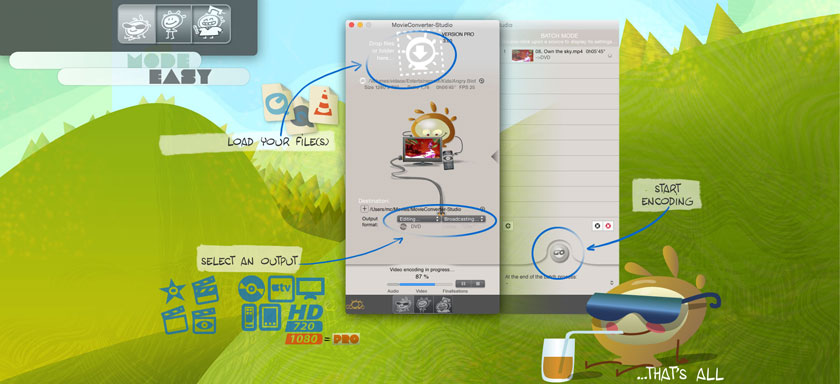
  • Load a video
  • MovieConverter generates to you a thumbnail (these files cannot be preview in Finder, it will be more convenient to check what they contain).
  • Click the preview (the "eye" button) and MovieConverter will display an extract of this non-readable video ;).
  • Choose your output format (a file for iMovie, for FinalCut, un 720p, un 1080i, …)
  • Convert :)

New v1.5 - for all and still free:

  • Bug fix for "high speed" AVCHD videos (50 fps ou 60 fps)
  • Handles new camcorders like Toshiba or Panasonic Lumix.

New v1.5 - "Comfort" options for registered users:

Batch mode: how to

  • Select an output format.
  • Select a destination folder.
  • Drop a file, some files or a folder (your SD cart for example) on MovieConverter Studio icon in the Dock.
  • Optional:
    • To remove an item from the list, select it and click on "X".
    • To remove all items from the list, select one and click on "X"
    • To reload an item to encode (useful if you want to check or modify your settings), double-click on this item.
    • To launch the batch encoding, click on the "GO" button (now located in the "Batch processing" drawer).
  • Click on the "Go" button to encode all your videos.


The "Suntaic" module uses the same open-source tools that the other soft (you will have exactly the same quality and the same slowness in "classic" mode), namely: chapitre

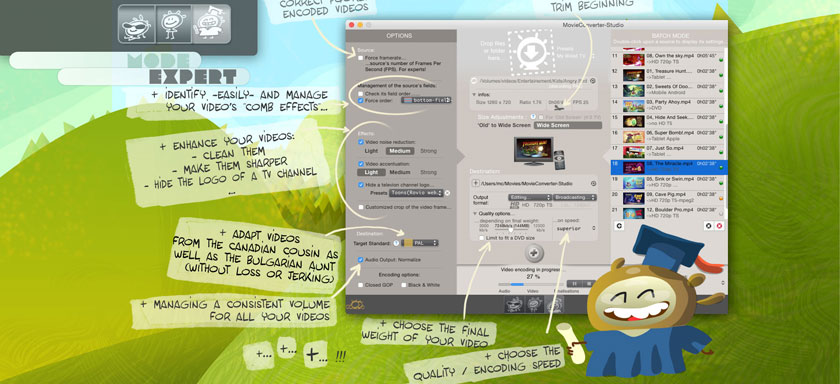
Option "Force contents as progressive":
- Most of HD camcorders record images as "interlaced = i", and very rarely as "progressive = p".
- But these camcorders still wraps images (= contents) as "interlaced = i".
If your camcorder really shoots in mode "p", indicate to MovieConverter that the "i" wrapper information have not to be taken into account. In the final you will have a better quality.

As usual, if that text is too technical for you and you do not understand it, do not touch anything and let MovieConverter automations automatic to handle everything (This advice applies to all modules of this software ;)).

Last but not least:
- The Canon HF10 is supposed to shoot in "p" mode (progressive). In practice, some areas remain interlaced. Whose fault? the encoder? the "psf" mode (and not real "p" mode). No idea, but if you want to output to "1920x1080p" avoid to check "Force contents as progressive".
- The shoot of Canon HG21 camcorder seems to be cool, real "p" mode. So, do not forget to check "Force contents as progressive" whatever your output option.


List of already checked cameras

(Your camcorder is not here? …send me an extract to check it and add it to the list ;))

Captions:

:) : compatible
:) : not-compatible
- : mode non-available

Mode
classic
Mode
fast
Canon HF10 :) :)
Canon HF11 :) :)
Canon HF100 :) :)
Canon HF200 :) :)
Canon HG10 :) :)
Canon HG20 :) :)
Canon HG21 :) :)
Canon HR10 :) :)
Canon HV20 - :)
Panasonic AG-HMC151E (included with 60fps) :) :)
Panasonic HDC-SD1 :) :)
Panasonic HDC-SD5 :) :)
Panasonic HDC-HS9 :) :)
Panasonic HDC-SD9 :) :)
Panasonic HDC-SD10 :) :)
Panasonic HDC-SD100 :) :)
Panasonic HDC-SD60 :) :)
Panasonic HDC-SD300 :) :)
Panasonic HDC-SD700 :) :)
Lumix APN :-) … incompatible with iMovie'08 (dixit Apple)
Panasonic Lumix DMC-FT1 - :)
Panasonic Lumix DMC-FZ35 - :)
Panasonic Lumix DMC-GF1 - :)
Panasonic Lumix DMC-TS1 - :)
Panasonic Lumix DMC-TZ7 - :)
Panasonic Lumix DMC-ZS3 - :)
Sony EX1 :) :)
Sony HDS-CX6 :) :)
Sony HDR-CX11 :) :)
Sony HDR-SR1 :) :)
Sony HDR-SR10 :) :)
(out-of-synch)
Sony HDR-SR11 :) :)
Sony HDR-SR12 :) :)
Sony HDR-TG3E / Sony HDR-TG1 :) :)
Sony HXR-NX5 (including with PCM audio): managed but not in the official version, contact me first ;-)
Toshiba GigaShot A40FE :) :)
JVC GZ-HD5
JVC GZ-HD7
JVC GZ-HD30
… all JVC camcorders recording in .TOD
- :)
Sanyo Xacti HD1 - :)
JVC Everio HD7 (AVCHD) :) :)
JVC Everio HD40 (AVCHD) :) :)
JVC GZ-HM200 (AVCHD) :) :)
Sanyo Xacti HD1000 - :)
Sanyo Xacti HD1010 - :)
Sanyo Xacti HD700 - :)
Sanyo Xacti HD2000 - :)


bogus